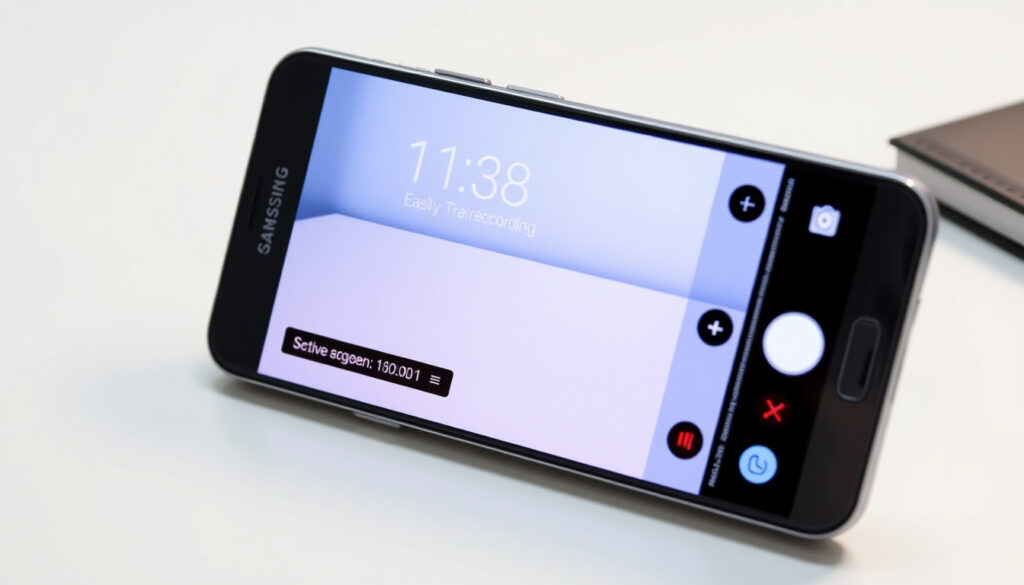
How to Screen Record on Samsung Phones: Easy Guide
You open your Galaxy phone to show someone a video, and suddenly you need to record your screen. Most Galaxy phones have a built-in screen recorder hidden in the Quick panel—you just need to know where to look.
Built-in Feature: Yes on Galaxy phones · Access Method: Quick panel icon · Video Storage: Gallery app · Supported Devices: S20, S21, S22, S24, A12, A13, A14 · Official Guide: Samsung.com support
Quick snapshot
- Built-in on flagship Galaxy phones (Samsung Official Support)
- Access via Quick Settings panel (Samsung Official Support)
- 3-second countdown before recording starts (YouTube Tech Tutorial)
- Audio options: No sound, Media, Media + Mic (Samsung Official Support)
- Exact Android version when A14 received screen recorder (YouTube Tech Tutorial)
- Regional carrier variations in feature availability (YouTube Tech Tutorial)
- Native recorder introduced in One UI 4.0 (Android 12) — October 2021 (Samsung Official Support)
- Android 14 brought Quick Panel UI changes — October 2023 (YouTube Tech Tutorial)
- More budget models expected to gain native recorder in future updates (Samsung Official Support)
Five key facts emerge from Samsung’s official documentation and hands-on tutorials: how you access the recorder, where recordings land, and which models have the feature built in.
The table below summarizes the core specs and settings for Samsung’s native screen recorder, drawing from official Samsung support documentation and verified hands-on testing.
| Detail | Value |
|---|---|
| Primary Access | Quick settings panel |
| Default Duration | 10 minutes max |
| Storage Location | My Files > Videos |
| Official Source | Samsung.com support |
| Audio Options | No sound, Media, Media + Mic |
| Countdown Timer | 3 seconds |
How to screen record on your Samsung phone?
Samsung hides the screen recorder in the Quick Settings panel — the overlay that appears when you swipe down from the top of the screen. Open the Quick settings panel by swiping down from the top right of the screen, then tap the Screen recorder icon. If your panel looks different, swipe down a second time to expand it fully. The recorder then asks you to choose audio settings before starting.
Access the Quick panel
On most Galaxy phones, you swipe down from the top right to open the Quick Settings panel. If you only see four or five icons, swipe down again to reveal the full panel. Look for the Screen recorder icon — it typically looks like a small camera with a dot inside a rounded rectangle.
Start recording
Once you tap the icon, the screen recorder offers three audio options: No sound, Media sounds (phone audio only), or Media sounds and mic. Choose your preference, then tap Start recording. A 3-second countdown begins before the capture starts. During recording, a floating toolbar appears with controls for pause, draw, and stop.
Stop and save video
You can stop recording by tapping the floating Stop button, opening the notification panel and selecting Stop, or swiping down and choosing the stop option. The video saves to your Gallery or to My Files under Videos or DCIM.
Does Samsung phone have a built-in screen recorder?
Yes, most Samsung Galaxy phones released since around 2021 ship with a native screen recorder built into One UI. The feature arrived with One UI 4.0, which was based on Android 12 and rolled out starting in October 2021. This means the Galaxy S20, S21, S22, and S24 all have it, as do many A-series phones from A12 onward.
Check device compatibility
The native screen recorder works on most Galaxy devices running One UI 2.1 or later, though the exact software version that introduced the feature varies by model. Flagship phones like the S24 and S22 reliably have it. Budget models like the Galaxy A14 may lack the native recorder entirely — in those cases, a third-party app like XRecorder fills the gap.
If you bought your Galaxy phone after late 2021 and it’s an S-series or recent A-series device, the odds are high that native screen recording is already there — buried in your Quick panel.
Why don’t I have the screen record button on my Samsung?
The screen recorder icon sometimes disappears from the Quick panel after a software update, particularly after upgrading to Android 14 on devices like the Galaxy S22. This catches a lot of users off guard. The fix is straightforward: the icon isn’t gone, it’s just hidden in a different panel page.
Add to Quick panel
To restore the icon, tap the pencil or three-dot menu in your Quick panel to enter edit mode, then scroll through the available buttons — the Screen recorder may be on the second or third page of options. Drag it up to your active panel and tap Done. The icon reappears exactly where you placed it.
Update software
If the screen recorder icon still doesn’t appear after editing the panel, check whether your software is up to date. Feature availability varies by model and software version. Go to Settings > Software update and install any pending updates, then try editing the Quick panel again.
Android 14 changed how Quick Panel buttons are organized, which is why many S22 and S21 users suddenly lost the icon after their 2024 update — not because the feature disappeared, but because Samsung shuffled where it lives in the panel.
How to screen record on Samsung S series (S20, S21, S22, S24)?
All Galaxy S phones from S20 onward share the same Quick Settings method for screen recording. The interface and controls are nearly identical across the lineup, with only minor variations in advanced options like front camera overlay. Samsung’s support documentation confirms the process works the same way on S22 as it does on the newer S24.
S20 steps
On the S20, swipe down from the top of the screen to open the Quick Settings panel. If you don’t see the Screen recorder icon, swipe down a second time to expand the panel. Tap the icon, select your audio options, and tap Start. A 3-second countdown begins, then recording starts. You can draw on the screen during recording using the pencil tool, adjust color and thickness, and pause without stopping entirely.
S21/S22/S24 steps
The process on S21, S22, and S24 is identical: swipe down from top right, tap Screen recorder, choose audio, tap Start. On the S24 specifically, the floating toolbar is draggable by long-pressing during recording, so you can move it out of the way of whatever you’re capturing. The front camera overlay — a small window showing your face during recording — is supported on S22 and S24 and can be dragged to any corner of the screen.
How to screen record on Samsung A series (A12, A13, A14) and tablet?
The A series tells a different story. While the Galaxy A12, A13, and A14 share the same One UI software as their flagship cousins, budget constraints mean Samsung sometimes trims features like native screen recording. Many A-series owners find the Screen recorder icon simply isn’t there — even after editing the Quick panel.
A series steps
On the A12, A13, and A14, first check whether the screen recorder exists in your Quick panel at all. Swipe down twice, tap Edit, and look through all available buttons. If it’s missing, the A14 likely requires a third-party solution. For these models, installing XRecorder from Google Play is the recommended workaround.
Tablet steps
Samsung tablets like the Tab A8 follow the same Quick Settings method as Galaxy phones. Swipe down from the top right, look for the Screen recorder icon, and proceed as usual. However, Samsung’s official support notes that some settings like front camera overlay recording may not be available on all tablets, including the Tab A8. On tablets where native recording is missing, the same XRecorder solution applies.
Samsung’s budget and older models often ship without the native recorder, but checking the Quick panel edit screen first costs nothing — the icon sometimes hides on a later page of available buttons before you resort to a third-party app.
Can I use third-party apps instead?
When native screen recording isn’t available — or when you need features Samsung’s built-in tool doesn’t offer — third-party apps like XRecorder fill the gap. XRecorder is the most commonly recommended alternative across tech tutorials, with a free version available on Google Play. It adds a floating record button after you grant camera and microphone permissions, and it works regardless of whether your device has native screen recording.
To use XRecorder, install it from the Google Play Store, open it, and grant the necessary permissions. Tap Record, choose whether to capture media audio only or media plus microphone, and then start. The app places a floating button on your screen that stays out of the way during recording. Videos save to the app’s dedicated folder, which you can then move to your Gallery if preferred.
Third-party apps give you more features — higher resolution options, live filters, trimming before saving — but they also require extra permissions. If privacy matters on the content you’re capturing, the native recorder is the safer choice since it doesn’t route your screen through a third-party server.
How to customize screen recorder settings on Samsung?
Samsung’s built-in recorder offers several customization options accessible through a long-press on the Screen recorder icon in the Quick panel. From here, you can adjust video resolution, change where recordings save, enable the “show taps and touches” option so viewers see your inputs, and set default audio preferences. These settings stick across sessions, so you only need to configure them once.
The front camera overlay is another customizable feature on supported Galaxy phones. When enabled, a small window showing your face appears in the corner of the recording — useful for reaction videos or walkthroughs. You can drag this window anywhere on the screen before or during recording. Note that this feature is not available on all devices; Samsung’s support page specifically flags the Galaxy Tab A8 as lacking front camera overlay support.
What’s confirmed and what’s unclear
Confirmed
- Built-in on recent Galaxy flagship phones
- Quick panel activation works across S20-S24
- Audio options: No sound, Media, Media + Mic
- 3-second countdown before recording starts
- Videos save to Gallery or My Files
Unclear
- Exact One UI version when A14 gained or lacked native recorder
- Carrier-specific variations in feature availability
- Whether front camera overlay works on every A-series model
Open the Quick settings panel by swiping down from the top right of the screen. Then, tap the Screen recorder icon.
— Samsung Official Support (Samsung’s official step-by-step guide for Galaxy models)
Many Samsung phones, especially older or budget models, don’t come with a native screen recorder.
— YouTube Tech Tutorial (Hands-on guide for missing screen recorder fixes)
Related reading: How to Upgrade PS5 SSD – Step-by-Step Guide · Lenovo Legion Go 2 – Specs, Price, Release and Comparison
Samsung Galaxy phones pack versatile screen tools where video recording pairs naturally with screenshot gestures like palm swipes or button combos for quick stills.
Frequently asked questions
How long can I screen record on Samsung?
The built-in Samsung screen recorder has a default maximum duration of 10 minutes per recording. If you need to capture longer content, you may need to start a new recording after the limit is reached.
Can I screen record with internal audio?
Yes. Samsung’s built-in recorder offers three audio options: No sound, Media sounds (phone audio only), and Media sounds and mic (captures both your phone’s audio and your voice).
How to edit Quick panel on Samsung?
Swipe down from the top of your screen to open the Quick panel. Tap the pencil icon or the three-dot menu, then drag any available button — including Screen recorder — from the lower inactive section up to your active panel. Tap Done when finished.
What if screen recorder crashes during recording?
If the recorder crashes mid-session, your partial recording is usually saved automatically. Check Gallery or My Files under the Videos or DCIM folder. Samsung’s support recommends restarting your device if the issue persists, and ensuring your software is up to date.
Is screen recording available on all Samsung phones?
No. Most flagship Galaxy phones from S20 onward have native screen recording, but many budget models like the Galaxy A14 may lack it entirely. Check your Quick panel first — if the icon is missing, you can add it via edit mode, or use a third-party app.
How to share screen recordings?
After recording, open Gallery and find your video. Tap the Share icon to send it directly via messaging apps, email, or social media. You can also access recordings through My Files > Videos and share from there.
Does screen recording work in apps?
Yes, Samsung’s built-in screen recorder works across the entire interface and in most apps, including third-party ones. Some apps with DRM protection or specific security settings may block recording — in those cases, a third-party app also won’t circumvent the restriction.
More related posts
 Mona Lisa: Why It’s So Famous, Worth, Facts, and History
 CAD Rate in India Today: Live Exchange & Salary Guide
 Kal Tire Near Me: Hours, Locations & Phone Numbers
 When Life Gives You Tangerines – Release Date Cast Plot Guide
 LA vs Blue Jays: Game 4 Recap, Odds, Bichette News
 Musée des Beaux-Arts: Exhibitions, Hours & City Guides
 Dolar Americano a Canadiense – Current Rate and Forecast
 Hailey Baptiste: Father, Ethnicity, Injury, and Tennis Career